
Table Configurations
Overview
When setting up a sync destination, you can choose which tables to sync and customize how the data appears. Each table represents a different type of data from your connected accounts.
Available Tables
Bank Connections
Each individual bank connection you've set up. A bank connection can have many accounts. This is a required table for all destinations.
Fields
Field Name | Description | Required? | Airtable Types | Notion Types |
|---|---|---|---|---|
ID | Unique identifier for the bank connection | Yes | Single line text, Rich text, Long text | Text |
Name | Name of the financial institution | Yes | Single line text (Must be the first column) | Title |
Last Update | When the connection was last synced | Yes | Date, Date time | Date |
Error | Connection error message (if any) | No | Single line text, Rich text, Long text | Text |
Accounts
Individual accounts associated with your banking institutions (checking, savings, credit cards, investments, etc.) This is a required table for all destinations.
Fields:
Field Name | Description | Airtable Types | Notion Types |
|---|---|---|---|
Bank Connection | Reference to the associated bank connection | Linked records | Relation |
ID | Unique identifier for the account | Single line text, Rich text, Long text | Text |
Account Name | Display name of the account | Single line text (Must be the first column) | Title |
Current Balance | Current account balance | Currency, Number | Number |
Account Type | Type of account (depository, credit, loan, investment) | Multiple select, Single select | Select |
Available Balance | Available balance for spending | Currency, Number | Number |
Account Currency | Currency code (USD, EUR, etc.) | Multiple select, Single select, Single line text, Rich text, Long text | Select |
Account Mask | Last 4 digits of account number | Single line text, Rich text, Long text | Text |
Account Subtype | Detailed account type (checking, savings, credit card, etc.) | Multiple select, Single select | Select |
Account Limit | Credit limit or loan amount | Currency, Number | Number |
Liability Interest Rate* | Annual interest rate (loans and credit cards) | Number | Number |
Last Payment Amount* | Most recent payment amount | Currency, Number | Number |
Last Payment Date* | Date of most recent payment | Date, Date time | Date |
Next Payment Due Date* | When the next payment is due | Date, Date time | Date |
Last Statement Balance* | Balance from most recent statement | Currency, Number | Number |
Minimum Payment Amount* | Required minimum payment | Currency, Number | Number |
Next Monthly Payment* | Upcoming monthly payment amount | Currency, Number | Number |
Origination Date* | Date the loan/credit account was opened | Date, Date time | Date |
Origination Principal Amount* | Original loan amount | Currency, Number | Number |
*Debt-related fields are only available when you have liability data enabled in your Plaid connection.
Transactions
Money coming in and going out of your bank accounts - purchases, deposits, transfers, and more.
Available for: Plaid (with transaction data), Mercury, GoCardless, and Stripe connections
Configuration Options:
Include Pending Transactions
By default, transactions sync your destination when it is pending, and then updates whenever the transaction posts. If you only want posted transactions to sync, you can toggle this setting off.
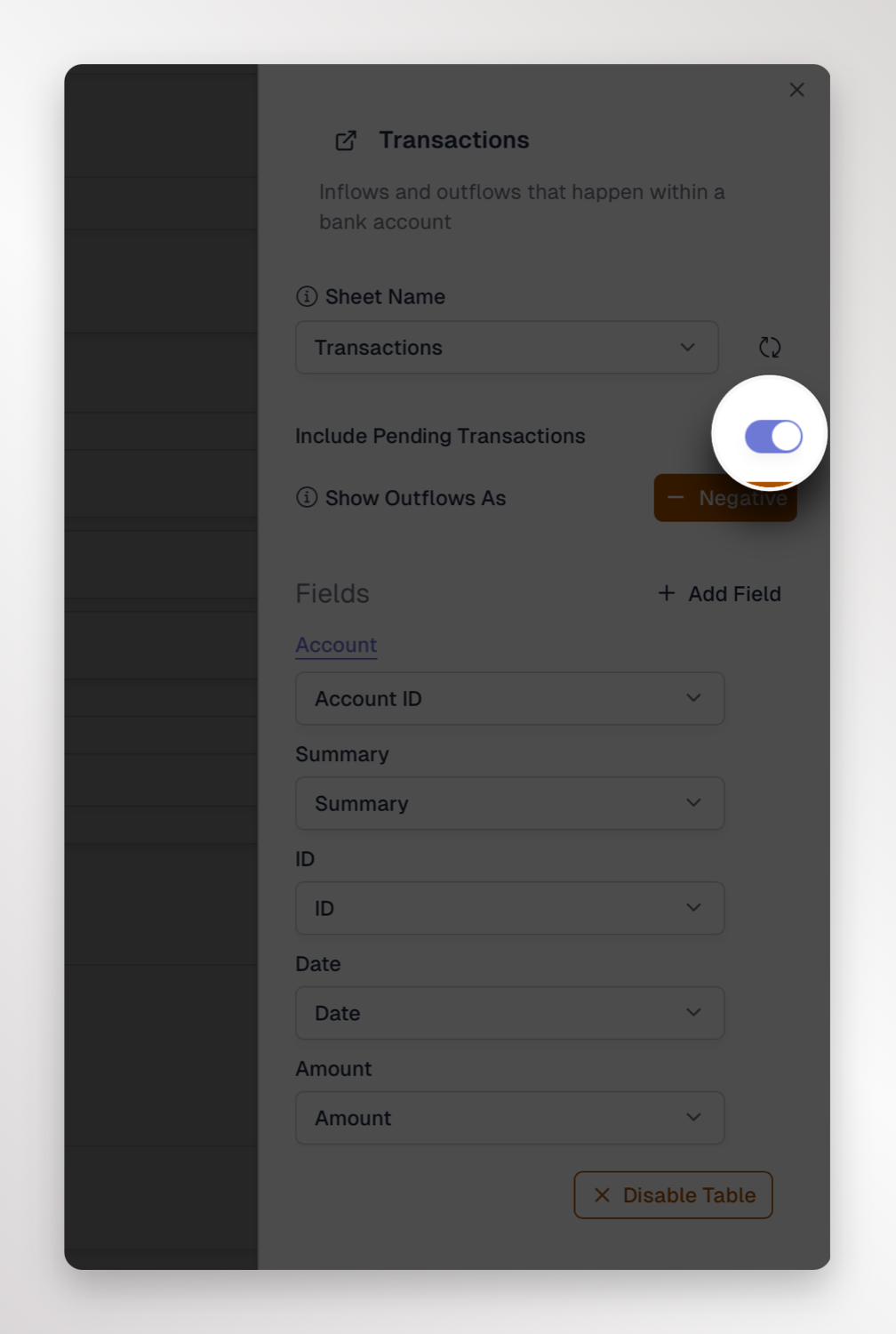
Default: Enabled (pending transactions are included)
Example: A restaurant charge might show as "pending" for a day or two before fully posting. Enable this to see those transactions right away, or disable it to only see fully cleared transactions.
Show Outflows As
What it does: Control how expenses and payments are displayed.
Options:
- Negative (default): Expenses appear as -$50.00
- Positive: Expenses appear as $50.00
Why it matters: Some people prefer all amounts as positive numbers for easier reading in spreadsheets and formulas.
Fields:
Field Name | Description | Airtable Types | Notion Types |
|---|---|---|---|
Account | Reference to the account where transaction occurred | Linked records | Relation |
Summary | Transaction description or name | Single line text, Long text (Must be the first column) | Title |
ID | Unique identifier for the transaction | Single line text, Rich text, Long text | Text |
Date | Transaction date | Date, Date time | Date |
Amount | Transaction amount (positive for income, negative for expenses by default) | Currency, Number | Number |
Currency | Currency code (USD, EUR, etc.) | Multiple select, Single select, Single line text, Rich text, Long text | Select |
Is Pending? | Whether transaction is pending or cleared | Checkbox | Checkbox |
Category | Reference to transaction category | Linked records | Relation |
Sub-Account | Additional account identifier | Single line text, Rich text, Long text | Text |
Merchant Name | Name of merchant or payee | Single line text, Rich text, Long text | Text |
Fees** | Transaction fees (Stripe only) | Currency, Number | Number |
Net Amount** | Amount after fees (Stripe only) | Currency, Number | Number |
Fee Type** | Type of fee charged (Stripe only) | Multiple select, Single select, Single line text, Rich text, Long text | Select |
Type | Transaction category (special, place, etc.) | Multiple select, Single select, Single line text, Rich text, Long text | Select |
Source | Data source for the transaction | Single line text, Rich text, Long text | Text |
Original Description | Unprocessed transaction description | Single line text, Rich text, Long text | Text |
**Payment-specific fields are only available for Stripe connections.
Categories
Budget categories that your transactions can be organized into (like "Food & Drink", "Transportation", "Shopping")
Available for: Plaid (with transaction data), Mercury, GoCardless, and Stripe connections
Configuration Options:
Use Automatic Categorization
What it does: Use Plaid's AI-powered categorization to automatically label your transactions.
Available for: Plaid connections only
Default: Enabled
Example: Plaid automatically categorizes a Starbucks purchase as "Food & Drink > Coffee" or a gas station as "Transportation > Gas"
Note: When disabled, you'll need to manually assign categories to transactions or use your own categorization system.
Fields:
Field Name | Description | Airtable Types | Notion Types |
|---|---|---|---|
ID | Unique identifier for the category | Single line text, Rich text, Long text | Text |
Name | Category name (e.g., "Food & Drink") | Single line text (Must be the first column) | Title |
Category Group | Parent category group (e.g., "Food and Drink" for "Restaurants") | Multiple select, Single select, Single line text | Select |
Description | Additional details about the category | Single line text, Rich text, Long text | Text |
Balance History
Daily snapshots of your account balances over time, perfect for tracking trends and building charts.
Fields:
Field Name | Description | Airtable Types | Notion Types |
|---|---|---|---|
ID | Unique identifier for the balance record | Single line text, Rich text, Long text (Must be the first column) | Title |
Account | Reference to the account | Linked records | Relation |
Date | Date of the balance snapshot | Date, Date time | Date |
Balance | Account balance on that date | Currency, Number | Number |
Holdings
The stocks, bonds, ETFs, and other securities you own in your investment accounts.
Available for: Plaid connections with investment data enabled
Fields:
Field Name | Description | Airtable Types | Notion Types |
|---|---|---|---|
Account | Reference to the investment account | Linked records | Relation |
Security | Reference to the security being held | Linked records | Relation |
Summary | Auto-generated holding description | Single line text, Long text (Must be the first column) | Title |
Quantity | Number of shares or units owned | Number | Number |
Cost Basis | Total cost basis of the position | Currency, Number | Number |
Base Currency | Currency of the holding | Multiple select, Single select, Single line text, Rich text, Long text | Select |
Last Update | Date the holding was last updated | Date, Date time | Date |
Securities
Details about individual stocks, bonds, ETFs, mutual funds, and options that appear in your investment accounts. This table is automatically included when you enable Holdings or Investment Transactions.
Available for: Plaid connections with investment data enabled
Fields:
Field Name | Description | Airtable Types | Notion Types |
|---|---|---|---|
Symbol | Ticker symbol (e.g., AAPL, VTSAX) | Single line text (Must be the first column) | Title |
ID | Unique identifier for the security | Single line text, Rich text, Long text | Text |
Security Name | Full name of the security | Single line text, Rich text, Long text | Text |
Close Price | Most recent closing price | Currency, Number | Number |
Close Price As Of | Date of the close price | Date, Date time | Date |
Security Type | Type of security (stock, ETF, mutual fund, bond, etc.) | Multiple select, Single select | Select |
Option Contract Type | Call or Put (for options only) | Multiple select, Single select | Select |
Option Expiration Date | Expiration date (for options only) | Date, Date time | Date |
Option Strike Price | Strike price (for options only) | Currency, Number | Number |
Option Underlying Ticker | Symbol of underlying security (for options only) | Single line text, Rich text, Long text | Text |
Investment Transactions
Activity in your investment accounts like buying/selling securities, dividends, interest, and fees.
Available for: Plaid connections with investment data enabled
Fields:
Field Name | Description | Airtable Types | Notion Types |
|---|---|---|---|
Transaction ID | Unique identifier | Single line text, Rich text, Long text | Text |
Account | Reference to the investment account | Linked records | Relation |
Security | Reference to the security | Linked records | Relation |
Transaction Summary | Description of the transaction | Single line text (Must be the first column) | Title |
Date | Transaction date | Date, Date time | Date |
Quantity | Number of shares bought/sold | Number | Number |
Price | Price per share | Currency, Number | Number |
Amount | Total transaction amount | Currency, Number | Number |
Fees | Transaction fees charged | Currency, Number | Number |
Base Currency | Currency of the transaction | Multiple select, Single select, Single line text, Rich text, Long text | Select |
Transaction Type | Category of transaction (buy, sell, cash, etc.) | Multiple select, Single select | Select |
Transaction Subtype | Specific type (buy, sell, dividend, fee, deposit, etc.) | Multiple select, Single select | Select |
Customers
People and businesses who purchase from you.
Available for: Stripe connections only
Fields:
Field Name | Description | Airtable Types | Notion Types |
|---|---|---|---|
Customer ID | Unique Stripe customer ID | Single line text, Rich text, Long text | Text |
Customer Email | Email address | Email, Single line text (Must be the first column) | Title |
Customer Name | Full name | Single line text, Rich text, Long text | Text |
Description | Notes about the customer | Single line text, Rich text, Long text | Text |
Customer Balance | Current account balance | Currency, Number | Number |
Currency | Default currency for the customer | Multiple select, Single select, Single line text, Rich text, Long text | Select |
Created At | When customer was created | Date, Date time | Date |
Invoice Prefix | Prefix for invoice numbers | Single line text, Rich text, Long text | Text |
Address | Billing address | Single line text, Rich text, Long text | Text |
Shipping | Shipping address | Single line text, Rich text, Long text | Text |
Phone Number | Contact phone | Single line text, Rich text, Long text | Phone number |
Metadata | Custom key-value data | Single line text, Rich text, Long text | Text |
Products
The goods and services your business sells.
Available for: Stripe connections only
Fields:
Field Name | Description | Airtable Types | Notion Types |
|---|---|---|---|
ID | Unique Stripe product ID | Single line text, Rich text, Long text | Text |
Name | Product name | Single line text (Must be the first column) | Title |
Description | Product description | Single line text, Rich text, Long text | Text |
Is Active | Whether product is currently active | Checkbox | Checkbox |
Created At | When product was created | Date, Date time | Date |
Subscriptions
Recurring charges to your customers.
Available for: Stripe connections only
Fields:
Field Name | Description | Airtable Types | Notion Types |
|---|---|---|---|
Customer | Reference to the customer | Linked records | Relation |
ID | Unique Stripe subscription ID | Single line text (Must be the first column) | Title |
Billing Cycle Anchor | Billing cycle anchor date | Date, Date time | Date |
Cancel At | Scheduled cancellation date | Date, Date time | Date |
Cancel At Period End? | Whether subscription will cancel at period end | Checkbox | Checkbox |
Cancellation Details Comment | Customer's cancellation comment | Single line text, Rich text, Long text | Text |
Cancellation Details Feedback | Cancellation feedback category | Single line text, Rich text, Long text | Text |
Cancellation Details Reason | Reason for cancellation | Single line text, Rich text, Long text | Text |
Cancelled At | When subscription was cancelled | Date, Date time | Date |
Created At | When subscription was created | Date, Date time | Date |
Currency | Subscription currency | Multiple select, Single select, Single line text, Rich text, Long text | Select |
Current Period Start | Start of current billing period | Date, Date time | Date |
Current Period End | End of current billing period | Date, Date time | Date |
Ended At | When subscription ended | Date, Date time | Date |
Description | Subscription description | Single line text, Rich text, Long text | Text |
Started At | When subscription started | Date, Date time | Date |
Status | Subscription status (active, cancelled, etc.) | Multiple select, Single select, Single line text, Rich text, Long text | Select |
Trial Started At | Trial start date | Date, Date time | Date |
Trial Ended At | Trial end date | Date, Date time | Date |
Invoices
Bills issued to your customers to collect payment.
Available for: Stripe connections only
Fields:
Field Name | Description | Airtable Types | Notion Types |
|---|---|---|---|
ID | Unique Stripe invoice ID | Single line text (Must be the first column) | Title |
Currency | Invoice currency | Multiple select, Single select, Single line text, Rich text, Long text | Select |
Customer | Reference to the customer | Linked records | Relation |
Description | Invoice description | Single line text, Rich text, Long text | Text |
URL | Link to invoice in Stripe | URL | URL |
Period Start | Start of billing period | Date, Date time | Date |
Period End | End of billing period | Date, Date time | Date |
Status | Invoice status (draft, open, paid, void, etc.) | Multiple select, Single select, Single line text, Rich text, Long text | Select |
Subscription | Reference to subscription (if applicable) | Linked records | Relation |
Amount Due | Total amount due | Currency, Number | Number |
Amount Paid | Amount paid | Currency, Number | Number |
Created At | When invoice was created | Date, Date time | Date |
Due At | When payment is due | Date, Date time | Date |
Paid At | When invoice was paid | Date, Date time | Date |
Voided At | When invoice was voided | Date, Date time | Date |
Customizing Your Tables
Selecting Fields
For each table, you can choose which specific fields to include. This helps you:
- Keep your destination organized with only the data you need
- Improve sync performance by reducing data volume
- Match your existing data structure
Table Relationships
Some tables reference others (like Transactions referencing Accounts). When you enable a table, make sure its related tables are also enabled for the best experience.
Common relationships:
- Transactions → Accounts, Categories
- Holdings → Accounts, Securities
- Investment Transactions → Accounts, Securities
- Invoices → Customers, Subscriptions
- Balance History → Accounts
Frequently Asked Questions
What should I do if I see duplicate transactions in my destination?
If your bank was not set up via Plaid, then reach out to support to get assistance.
If your bank is connected via Plaid, you might encounter issues where a transaction syncs twice by accident. This is a known data issue with Plaid that is unfortunately out of Finta's control. If you experience this issue, try syncing only posted transactions to ensure that each transaction syncs only once.
Can I change my table configuration after setting up a sync?
Yes! You can add or remove tables and fields at any time. Changes will apply to future syncs.
What happens if I disable a table that I previously synced?
The data will remain in your destination, but new data won't be synced. If you want to remove the old data, you'll need to delete it manually in your destination.
Why don't I see investment tables?
Investment tables (Holdings, Securities, Investment Transactions) are only available if you've connected Plaid with investment data enabled. If you've connected a bank with at least one investment account and still don't see these tables, please reach out for support.
Can I customize transaction categories?
When using Plaid's automatic categorization, categories are determined by Plaid. To use custom categories, disable automatic categorization and create your own categories in the Categories table. You cal also use the Rules Engine to auto-categorize your transactions based on your own pre-defined rules.
How often does Balance History update?
Balance History captures one snapshot per day per account. Historical data availability depends on your data provider.